



EWS
EWS
Close
  • Products
    Plastic Tie-On Cable Labels
    Picture for category Plastic Tie-On Cable Labels
    Plastic Engraved Labels
    Picture for category Plastic Engraved Labels
    Stainless Steel Tags
    Picture for category Stainless Steel Tags
    Accessory Plate Labels
    Picture for category Accessory Plate Labels
  • FAQs
  • Contact Us
  • New here?
Menu
  • Products
    • Back
    • Plastic Tie-On Cable Labels
    • Plastic Engraved Labels
    • Stainless Steel Tags
    • Accessory Plate Labels
  • FAQs
  • Contact Us
  • New here?
Log in
0
You have no items in your shopping cart.
EWS
Log in
Shopping cart
Menu
  • Home /
  • Safe Condition Signs
Picture for category Safe Condition Signs

Safe Condition Signs

Categories
  • Mandatory Labels – Off-the-Shelf Electrical Labelling
  • Plastic Tie-On Cable Labels
  • Plastic Engraved Labels
  • Stainless Steel Tags
  • Accessory Plate Labels
Footer Logo
  • 4 Westfield Rd,
    Guildford
    Surrey
    GU1 1RR
  • 01483 574584
  • sales@ews.uk.com
EDA Logo
Information
  • Contact us
My Account
  • Orders
  • Addresses
  • Recently viewed products
Policies
  • Privacy Policy
  • Terms and Conditions
Copyright © 2025 EWS. All rights reserved.
Powered by nopCommerce
How to Order Your Accessory Plates
Follow the steps below to design and order your accessory plates:
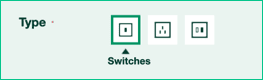
1 Choose the item type

Select whether you need:

  • Switches
  • Sockets
  • Spurs

Choose the item type

2 Select the type

From the dropdown, choose the specific switch, socket, or spur type you require.

Select the type

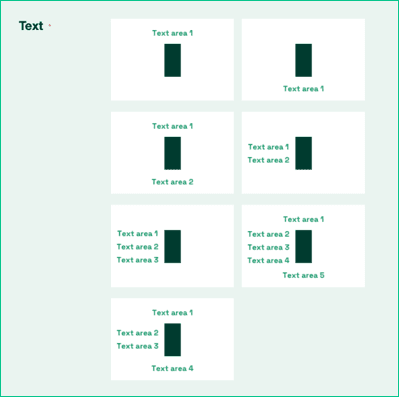
3 Choose the text panel layout

Select the layout option for the engraved text panel.
Choose the text panel layout

4 Tell us about supply of switches, sockets, or spurs

From the dropdown, choose one option:
No - I will supply these to you.
Yes - Please contact me to supply these.
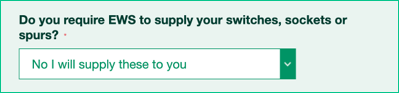
Tell us about supply of switches, sockets, or spurs

5 Enter the quantity

Type in how many accessory plates you need.
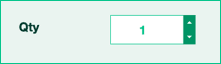
Enter the quantity

6 Provide your text

Manual entry: Enter your text into the box, then click Add for each item required.

Excel import: Go to the Export tab and download the template. Fill in the label text in the Excel file. Return to the Import tab, click select file and choose the file you just created and then click Import button.
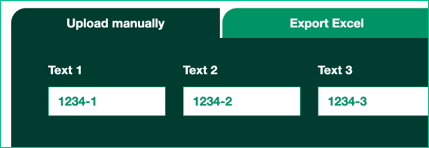
Provide your text

7 Add to basket

Once all text is supplied and checked, click Add to Basket to complete your order.

Add to basket

How to Order Your Custom Labels
Follow the steps below to design and order your labels:
1 Choose the label shape

Select the shape you need for your label.
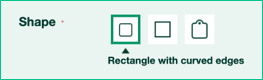
Choose the item type

2 Select the size

Pick the size of label required.

Select the type

3 Choose the hole configuration

Options include:

  • No holes
  • Two holes (centred)
  • Four holes (one in each corner)
  • Four holes (for cable ties)
  • One hole (left)
  • One hole (right)
  • One hole (top)

Choose the text panel layout

4 Select the text layout

Choose how your text should appear on the label:
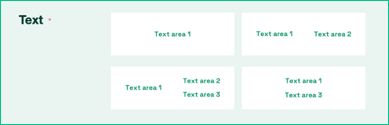
  • One centred text area
  • Two text areas (left and right)
  • Three text areas (one left, two right)
  • Two text areas (centred and stacked)
  • Three text areas (centred and stacked)
  • Four text areas (centred and stacked)

Tell us about supply of switches, sockets, or spurs

Note: Font size is chosen by EWS based on label size and text layout.

5 Enter the quantity

Type in how many labels you need.

Enter the quantity

6 Provide your label text

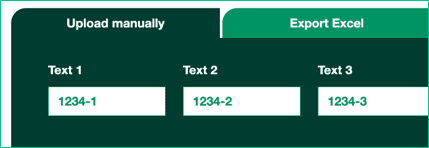
Manual entry: Enter your text into the box, then click Add for each item required.

Excel import: Go to the Export tab and download the template. Fill in the label text in the Excel file. Return to the Import tab, click select file and choose the file you just created and then click Import button.
Provide your text

7 Add to basket

Once all text is supplied and checked, click Add to Basket to complete your order.

Add to basket

How to Order Your Custom Labels
Follow the steps below to design and order your labels:
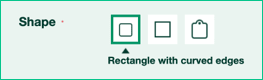
1 Choose the label shape

Select the shape you need for your label.
Choose the item type

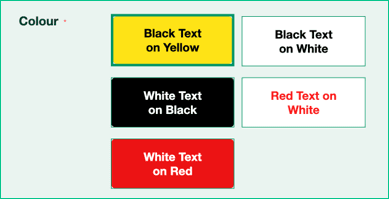
2 Choose the colour

For plastic tie-on and plastic engraved labels, select the colour.
Select the type

For stainless steel labels, skip this step.

3 Select the size

Pick the size of label required.

Choose the text panel layout

4 Choose the hole configuration

Options include:

  • No holes
  • Two holes (centred)
  • Four holes (one in each corner)
  • Four holes (for cable ties)
  • One hole (left)
  • One hole (right)
  • One hole (top)

Tell us about supply of switches, sockets, or spurs

5 Select the text layout

Choose how your text should appear on the label:
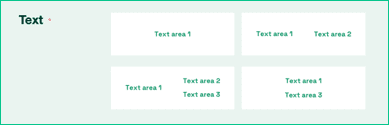
  • One centred text area
  • Two text areas (left and right)
  • Three text areas (one left, two right)
  • Two text areas (centred and stacked)
  • Three text areas (centred and stacked)
  • Four text areas (centred and stacked)

Enter the quantity

Note: Font size is chosen by EWS based on label size and text layout.

6 Enter the quantity

Type in how many labels you need.

Provide your text

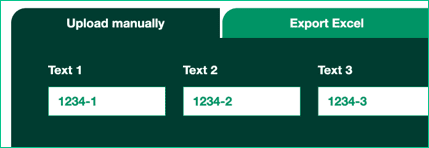
7 Provide your label text

Manual entry: Enter your text into the box, then click Add for each item required.

Excel import: Go to the Export tab and download the template. Fill in the label text in the Excel file. Return to the Import tab, click select file and choose the file you just created and then click Import button.
Provide your text

8 Add to basket

Once all text is supplied and checked, click Add to Basket to complete your order.

Add to basket